
Mobile Commons Email Signature Creator

Please note - your headshot image MUST BE SQUARE. Recommended size 300 x 300 and no smaller than 150 x 150. Your ideal file size is under 100MB.
Your image will be cropped into a circle, so please keep your face in the center and cropped around your head and shoulders with minimal background.
How your signature will look: (except with your pretty face instead of a logo!)

Adding Your Signature to Outlook Online (easy)
Adding your email signature in Outlook online is easy!
1. Fill out the form to the left and upload your square headshot image. You will receive an email with a .html file attachment. Save that file.
If your image is NOT square, check out this free online image cropping tool!
2. Double click the file to open it. It will open in your browser.
3. Highlight the signature (image and all) and hit copy.
4. Open Outlook online. In the top right corner of your screen, click settings (gear icon).
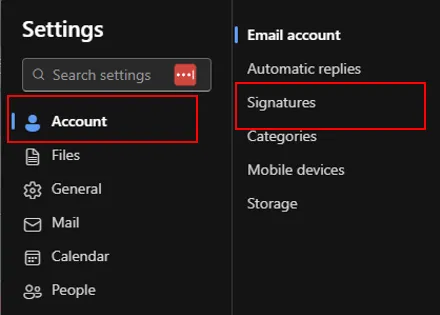
5. Choose "Account" and "Signatures"
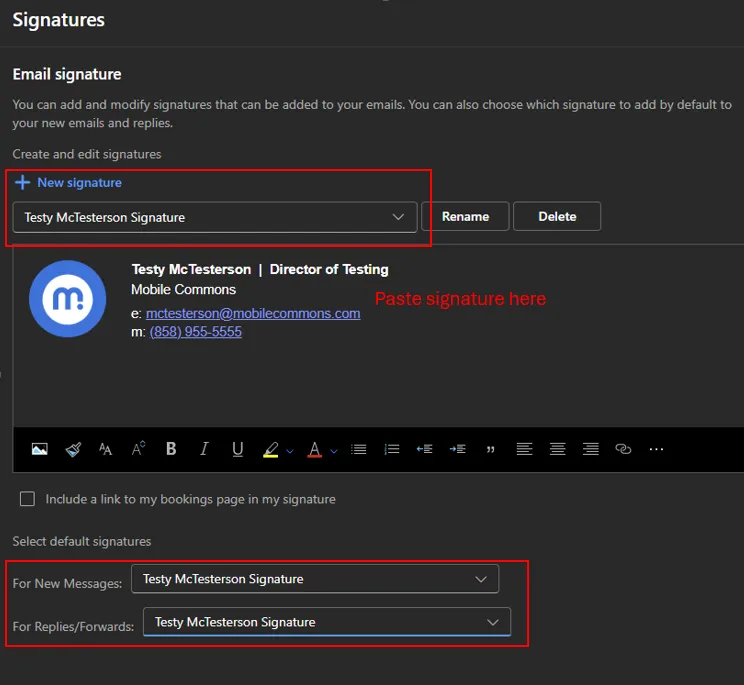
6. Click +New Signature and give your signature a name.
7. Paste your signature into the body
8. Hit Save.
9. Select your newly created signature as your default in the drop downs at the bottom of the page. Hit save again.
Outlook for Desktop
If you are using Outlook for Desktop instead of Outlook online, the process is a bit more difficult. Please see this helpful YouTube video for additional instructions.
Having difficulties? Please contact [email protected]

Where mobile meets mission - guided by experience, powered by partnership, proven at scale.
© Mobile Commons 2025 All Rights Reserved.